As organizations expand their data analytics capabilities, they encounter two primary challenges: delivering high-performance analytics at scale and managing secure access across various tools while integrating with existing identity management systems.
Utilizing Amazon Redshift Serverless behind an AWS Network Load Balancer with Microsoft Entra ID federation can effectively address these challenges. This setup not only facilitates authentication but also streamlines identity management across your data environment, supporting petabyte-scale analytics with auto-scaling capabilities.
This guide will walk you through configuring a native identity provider (IdP) federation for Amazon Redshift Serverless using a Network Load Balancer. You will learn how to establish secure connections from tools like DBeaver and Power BI while adhering to your enterprise security standards.
Architecture Overview
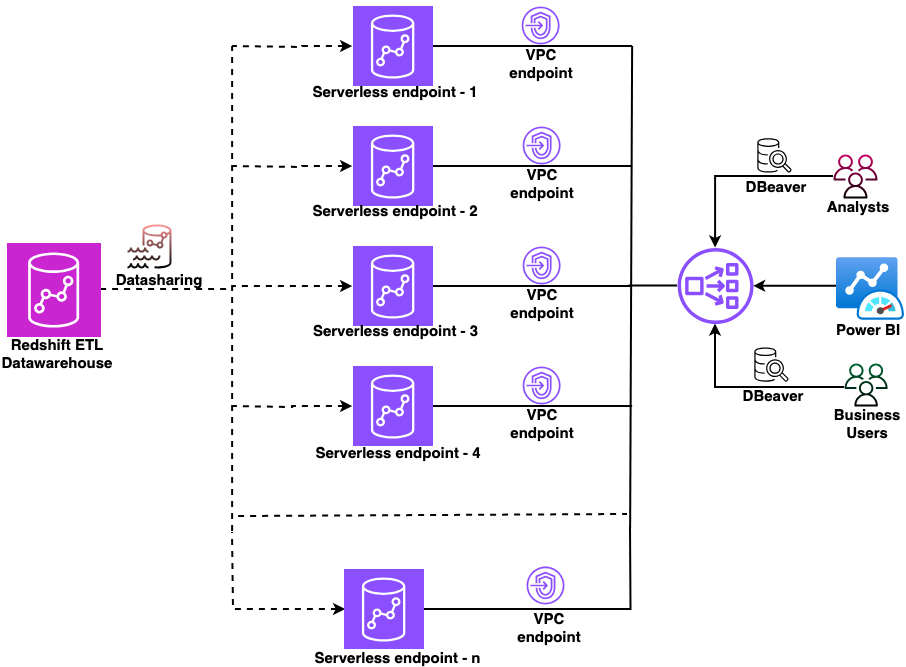
The following architecture diagram illustrates the setup:
Key Features:
- Scalable for single or multiple workgroups.
- Utilizes AWS services for enhanced security and performance.
Prerequisites
Before you begin, ensure you have met the prerequisites for this configuration. This solution involves several AWS services, including configuring the Network Load Balancer, setting up an ACM certificate, creating custom domain names in Amazon Redshift, and configuring DNS records in Amazon Route 53.
Configuration Steps
- Collect the private IP addresses for your Amazon Redshift-managed VPC endpoints.
- Create a target group for your endpoints.
- Add a listener to your Network Load Balancer.
For this example, use myexampledomain.com as a custom domain, replacing it with your actual domain name. Follow these steps to request and configure your certificate:
For improved security, consider adding individual Amazon Redshift Serverless CNAMEs instead of using wildcards. This example employs DNS validation in AWS Certificate Manager, requiring the creation of CNAME records to verify domain control.
DNS Configuration
Amazon Route 53 will map your custom domain name to the appropriate Amazon Redshift endpoint, allowing access via a name instead of a system-generated address. To do this, create a CNAME record for your Network Load Balancer.
Client Connection Setup
Configure your JDBC and ODBC drivers to connect client applications to Amazon Redshift through the Network Load Balancer using Microsoft Entra ID for authentication. This setup allows tools like DBeaver and Power BI to authenticate through the same identity provider, reaching the correct Amazon Redshift endpoint seamlessly.
Conclusion
This guide demonstrated how to integrate Amazon Redshift Serverless with Microsoft Entra ID using an AWS Network Load Balancer. As your data analytics needs grow, you can scale horizontally by adding new workgroups behind the same Network Load Balancer, simplifying user connection settings and authentication processes.
For further insights on extending and scaling this solution, refer to additional resources.