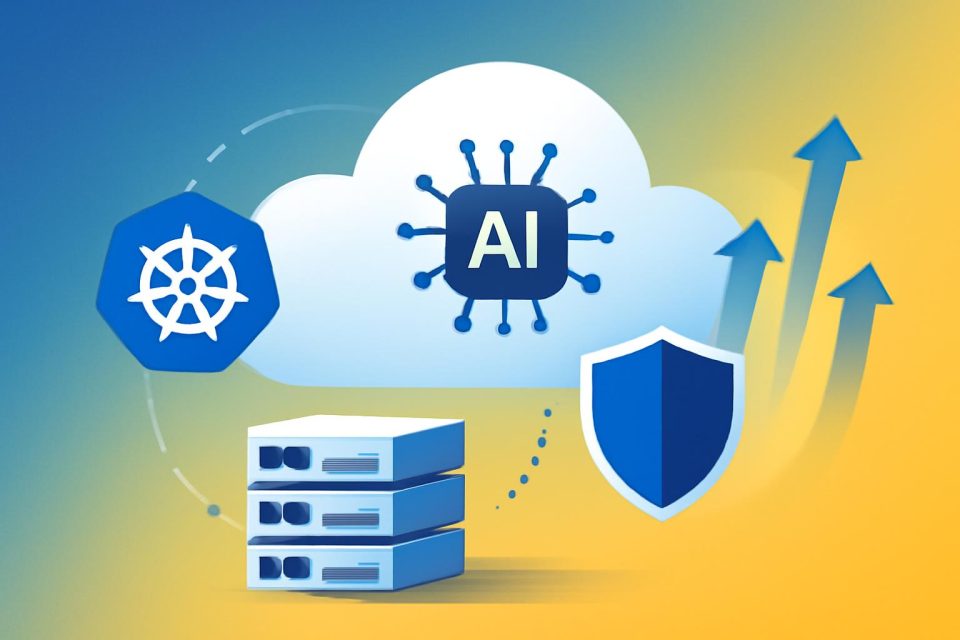
Building AI agents locally with Google’s Agent Development Kit (ADK) is a great starting point, but for production-ready agents, a scalable infrastructure is essential. Google Kubernetes Engine (GKE) Autopilot provides an ideal environment for developers transitioning from simple instances to managed container orchestration.
This tutorial outlines the process of creating a technical agent with ADK and deploying it to GKE Autopilot, utilizing Gemini on Vertex AI and implementing Workload Identity for secure permission management.
Understanding GKE ADK Architecture
Deploying an ADK agent on GKE Autopilot involves leveraging GKE's capabilities for scaling and security. The architecture includes an ADK-based Python application packaged as a Docker image and stored in Artifact Registry. This container operates as a Deployment on GKE Autopilot, securely communicating with Vertex AI through Workload Identity.
To expose the agent, the Kubernetes Gateway API is used, offering a modern alternative to Ingress, which supports Google Cloud Load Balancing.
Prerequisites
Before starting, ensure the following tools and accounts are prepared:
- Python 3.10 or higher
uvfor package management- Google Cloud SDK (
gcloud) installed and configured - A Google Cloud project with billing enabled
kubectlcommand-line tooljqfor JSON parsing- Enabled APIs: Kubernetes Engine, Artifact Registry, and Vertex AI
Step 0: Configuring Google Cloud and Authentication
Authenticate your environment and set the active project to enable access to Vertex AI:
- Login to Google Cloud SDK:
gcloud auth login - Set your active project:
gcloud config set project [PROJECT_ID] - Setup Application Default Credentials (ADC):
gcloud auth application-default login - Define Environment Variables:
export PROJECT_ID=$(gcloud config get-value project),export REGION=us-central1,export CLUSTER_NAME=adk-cluster
Step 1: Provisioning GKE Autopilot
GKE Autopilot allows Kubernetes to run without the need to manage nodes. Start the cluster creation process:
gcloud container clusters create-auto $CLUSTER_NAME --region $REGIONThis can run in the background while the agent is being built.
Step 2: Building the Agent with ADK
Create a folder for the agent code:
mkdir adk-agent && cd adk-agentInitialize a new Python project:
uv initAdd the necessary dependencies:
uv add google-adkCreate a new agent:
uv run adk create weather_agentFollow the prompts to select the model and backend, entering your project ID and region. This will create a directory structure for the agent.
Edit the agent.py file to define the agent and its tools, such as a simple weather function.
Step 3: Testing the Agent Locally
Before deployment, test the agent locally:
uv run adk webAccess the web UI at http://localhost:8000 to interact with the agent.
Step 4: Preparing for GKE Autopilot
Containerize the agent by creating a .dockerignore file and a Dockerfile for efficient deployment. Build and push the image to Artifact Registry:
gcloud artifacts repositories create adk-repo --repository-format=docker --location=$REGIONgcloud builds submit --tag $REGION-docker.pkg.dev/$PROJECT_ID/adk-repo/gke-agent:latestStep 5: Implementing Workload Identity for Security
To enhance security, implement Workload Identity:
- Create an IAM Service Account:
gcloud iam service-accounts create adk-gke-sa - Grant Vertex AI permissions:
gcloud projects add-iam-policy-binding $PROJECT_ID --member="serviceAccount:adk-gke-sa@$PROJECT_ID.iam.gserviceaccount.com" --role="roles/aiplatform.user" - Allow the Kubernetes Service Account to impersonate the IAM Service Account.
Step 6: Deploying the Agent to GKE
Create a deployment.yaml file to define Kubernetes resources and apply the configuration:
kubectl apply -f deployment.yamlMonitor the deployment status:
kubectl get pods -wOptional: Exposing via Gateway API and HTTPS Load Balancer
Expose the agent using the GKE Gateway API with a Google-managed TLS certificate. Reserve a static IP address and create a Google-Managed Certificate:
gcloud compute addresses create adk-agent-ip --globalgcloud compute ssl-certificates create adk-cert --domains adk.yourdomain.com --globalDefine a gateway.yaml file and apply the configuration:
kubectl apply -f gateway.yamlOnce the certificate is active, the agent can be accessed via HTTPS.
Conclusion
This guide has detailed the deployment of a production-ready AI agent using ADK on GKE Autopilot, ensuring scalability and security through Workload Identity. Future enhancements can include integrating additional tools or leveraging GKE’s multi-cluster capabilities for improved resilience.