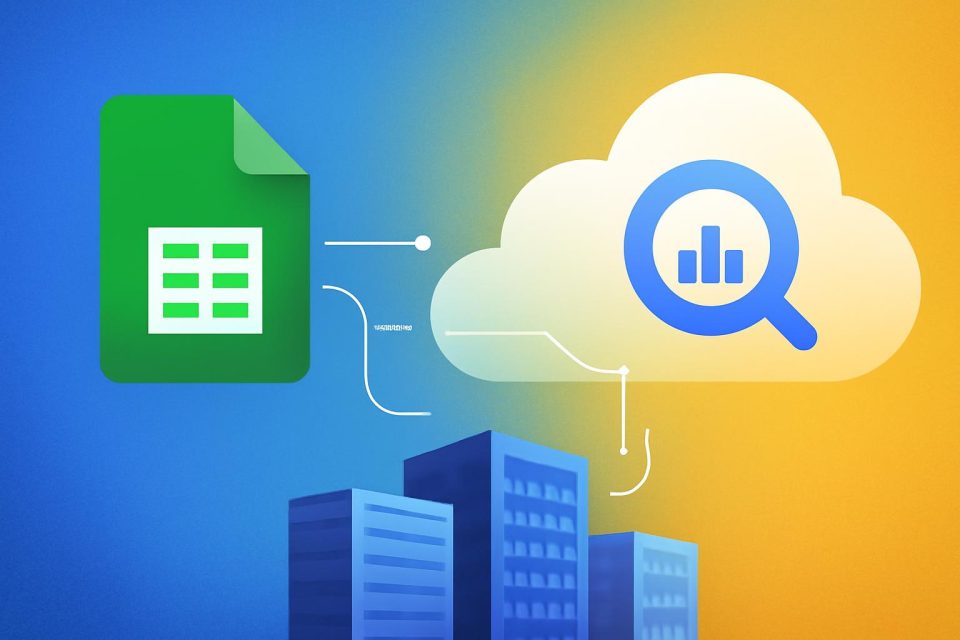
BigQuery, Google's secure and scalable data platform, serves as a critical source of truth for many organizations. However, business users often prefer conducting ad-hoc analysis in Google Sheets, which creates inefficiencies when data is exported as CSVs. This process can lead to data silos and security risks.
Connected Sheets addresses these challenges by providing a direct, live connection to BigQuery data within the familiar Google Sheets interface. This integration enables users to analyze large datasets quickly and securely without needing to learn complex SQL queries.
Benefits of Connected Sheets
Connected Sheets offers several advantages for both data administrators and end users:
- For Data Admins: Maintains security and governance by allowing controlled access to specific tables and views. Data cannot be altered from Connected Sheets, ensuring integrity.
- For End Users: Empowers users to utilize familiar tools like pivot tables and charts for real-time data analysis, enhancing agility and responsiveness.
Key Use Cases
Organizations have identified three primary use cases for Connected Sheets:
- Self-Service Exploratory Analysis: Business analysts can access curated datasets, enabling them to create their own pivot tables and charts without burdening data teams with requests.
- Operational Reporting: Users can generate live, refreshable dashboards that provide reliable insights for leadership, eliminating the need for manual data exports.
- Hybrid Data Modeling: Analysts can blend governed data with real-time inputs, allowing for customized metrics and calculations directly within the sheet.
Getting Started with Connected Sheets
Setting up Connected Sheets is straightforward. Users need a Google Workspace account and a billing-enabled Google Cloud project. There are two main methods to connect:
1. From Google Sheets
- Open a new Google Sheet.
- Go to Data > Data Connectors > Connect to BigQuery.
- Select your Google Cloud project.
- Choose datasets or input a custom SQL query.
- Click Connect.
2. From BigQuery
- Access the BigQuery UI in the Google Cloud console.
- Locate the desired table or query result.
- Click the Export menu and select Open in > Connected Sheets.
Conclusion
Connected Sheets effectively bridges the gap between the scalability of BigQuery and the flexibility of Google Sheets, empowering organizations to leverage their data more effectively. By connecting BigQuery data to Google Sheets, users can enhance their analytical capabilities and streamline reporting processes.